teleoperation
- Humble
- Jazzy
- Noetic
Teleoperation
The TurtleBot3 can be teleoperated by remote control. Make sure that the necessary ROS packages are supported for your SBC and ROS version.
WARNING: Make sure to run Bringup on the TurtleBot3 SBC before teleoperation. Additionally, be careful when testing the robot on the table as the robot may drive over the edge.
Keyboard
- Open a terminal on the Remote PC.
- Run the teleoperation node. Replace the
${TB3_MODEL}withburgerorwaffleorwaffle_pi, if the TURTLEBOT3_MODEL parameter is not predefined.
[Remote PC]
$ export TURTLEBOT3_MODEL=${TB3_MODEL}
$ ros2 run turtlebot3_teleop teleop_keyboard
- If the node is successfully launched, the following instructions will appear on the terminal window.
[Remote PC]
Control Your Turtlebot3
Moving around
        w
    a   s   d
        x
w/x : increase/decrease linear velocity (Burger : ~ 0.22, Waffle and Waffle Pi : ~ 0.26)
a/d : increase/decrease angular velocity (Burger : ~ 2.84, Waffle and Waffle Pi : ~ 1.82)
space key, s : force stop
CTRL-C to quit
RC-100
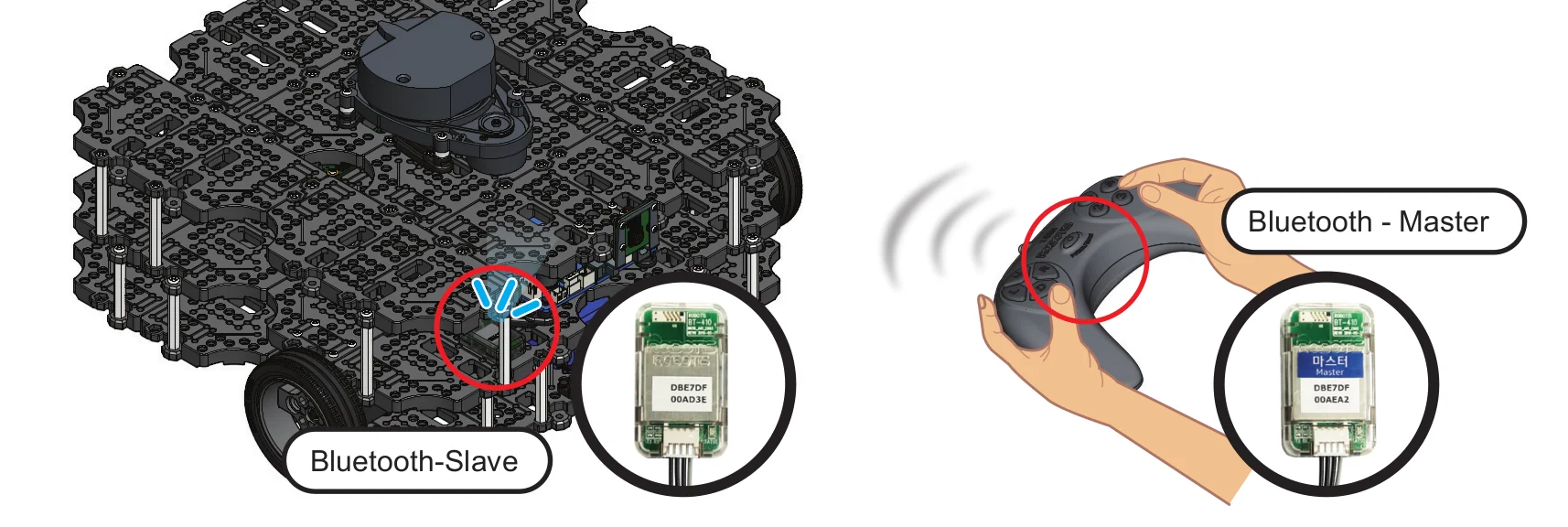
The settings for the ROBOTIS RC-100B are included in the OpenCR firmware for TurtleBot3. It can be used with the BT-410 Bluetooth module. TurtleBot3 Waffle Pi includes this controller and Bluetooth modules. When using the RC-100B, it is not necessary to execute a specific node because turtlebot_core node creates a /cmd_vel topic in the firmware directly connected to OpenCR.
-
Connect BT-410 to any of the OpenCR UART ports.
-
Control the TurtleBot3 with RC-100.
- Up / Down : Increase or decrease linear velocity
- Left / Right : Increase or decrease angular velocity
PS3 Joystick
-
Connect the PS3 Joystick to the Remote PC via Bluetooth or a USB cable.
-
Install the
ds4drvpackage using pip.
[Remote PC]
$ sudo pip install ds4drv
- Launch the joystick node.
[Remote PC]
$ sudo ds4drv
$ ros2 run joy joy_node
- Open a new terminal and launch the teleoperation node.
[Remote PC]
$ ros2 run teleop_twist_joy teleop_node
XBOX 360 Joystick
-
Connect the XBOX 360 Joystick to the remote PC with the Wireless Adapter or USB cable.
-
Open a terminal on the Remote PC.
-
Launch the joystick node.
[Remote PC]
$ ros2 run joy joy_node
- Open a new terminal and launch the teleoperation node.
[Remote PC]
$ ros2 run teleop_twist_joy teleop_node
Teleoperation
The TurtleBot3 can be teleoperated by remote control. Make sure that the necessary ROS packages are supported for your SBC and ROS version.
WARNING: Make sure to run Bringup on the TurtleBot3 SBC before teleoperation. Additionally, be careful when testing the robot on the table as the robot may drive over the edge.
Keyboard
- Open a terminal on the Remote PC.
- Run the teleoperation node. Replace the
${TB3_MODEL}withburgerorwaffleorwaffle_pi, if the TURTLEBOT3_MODEL parameter is not predefined.
[Remote PC]
$ export TURTLEBOT3_MODEL=${TB3_MODEL}
$ ros2 run turtlebot3_teleop teleop_keyboard
- If the node is successfully launched, the following instructions will appear on the terminal window.
[Remote PC]
Control Your Turtlebot3
Moving around
        w
    a   s   d
        x
w/x : increase/decrease linear velocity (Burger : ~ 0.22, Waffle and Waffle Pi : ~ 0.26)
a/d : increase/decrease angular velocity (Burger : ~ 2.84, Waffle and Waffle Pi : ~ 1.82)
space key, s : force stop
CTRL-C to quit
RC-100
The settings for the ROBOTIS RC-100B are included in the OpenCR firmware for TurtleBot3. It can be used with the BT-410 Bluetooth module. TurtleBot3 Waffle Pi includes this controller and Bluetooth modules. When using the RC-100B, it is not necessary to execute a specific node because turtlebot_core node creates a /cmd_vel topic in the firmware directly connected to OpenCR.
-
Connect BT-410 to any of the OpenCR UART ports.
-
Control the TurtleBot3 with RC-100.
- Up / Down : Increase or decrease linear velocity
- Left / Right : Increase or decrease angular velocity
Teleoperation
WARNING: Make sure to Bringup the TurtleBot3 SBC before teleoperation, and be careful when testing the robot on a table as the robot may fall off the edge.
The TurtleBot3 can be teleoperated by remote control. Make sure that the necessary ROS packages are available for your SBC and ROS version.
Keyboard
- Launch the
turtlebot3_teleop_keynode from the Remote PC for teleoperation. Replace the${TB3_MODEL}parameter with your specific model name (burgerorwaffleorwaffle_pi).
[Remote PC]
$ export TURTLEBOT3_MODEL=${TB3_MODEL}
$ roslaunch turtlebot3_teleop turtlebot3_teleop_key.launch
- If the node has successfully launched, the following instructions will appear in the terminal window.
[Remote PC]
Control Your Turtlebot3
Moving around
        w
    a   s   d
        x
w/x : increase/decrease linear velocity
a/d : increase/decrease angular velocity
space key, s : force stop
CTRL-C to quit
 Read more about How to predefine the TURTLEBOT3_MODEL
Read more about How to predefine the TURTLEBOT3_MODELThe export TURTLEBOT3_MODEL=${TB3_MODEL} command can be omitted if the TURTLEBOT3_MODEL parameter is predefined in your system's .bashrc file. The .bashrc file is automatically loaded when a terminal window is created.
- Example defining TurtlBot3 Burger as the default in the
.bashrcfile.
$ echo 'export TURTLEBOT3_MODEL=burger' >> ~/.bashrc
$ source ~/.bashrc
- Example defining TurtlBot3 waffle_pi as the default in the
.bashrcfile.
$ echo 'export TURTLEBOT3_MODEL=waffle_pi' >> ~/.bashrc
$ source ~/.bashrc
RC100
Settings for the ROBOTIS RC-100B controller are included in the OpenCR firmware for TurtleBot3 Burger, Waffle and Waffle Pi. This controller can be used with the BT-410 Bluetooth module. The TurtleBot3 Waffle Pi includes the RC-100 controller and Bluetooth modules. When using the RC-100, it is not necessary to execute a specific node because turtlebot_core node creates the required /cmd_vel.
-
Connect BT-410 to the OpenCR UART1 port (as described here).
-
Control the TurtleBot3 with the RC-100.
- Up / Down : Increase or decrease linear velocity
- Left / Right : Increase or decrease angular velocity
PS3 Joystick
-
Connect the PS3 Joystick to the remote PC via Bluetooth or a USB cable.
-
Install the required packages for teleoperation using a PS3 joystick.
[Remote PC]
$ sudo apt install ros-noetic-joy ros-noetic-joystick-drivers ros-noetic-teleop-twist-joy
- Launch the teleoperation node.
[Remote PC]
$ roslaunch teleop_twist_joy teleop.launch
XBOX 360 Joystick
-
Connect the XBOX 360 Joystick to the remote PC with a Wireless Adapter or USB cable.
-
Install the required packages for teleoperation using the XBOX 360 joystick.
[Remote PC]
$ sudo apt install xboxdrv ros-noetic-joy ros-noetic-joystick-drivers ros-noetic-teleop-twist-joy
- Launch the teleoperation packages for the XBOX 360 joystick.
[Remote PC]
$ sudo xboxdrv --silent
$ roslaunch teleop_twist_joy teleop.launch
Wii Remote
-
Connect the Wii remote to the remote PC via Bluetooth.
-
Install the required packages for teleoperation using the Wii remote.
[Remote PC]
$ sudo apt install ros-noetic-wiimote libbluetooth-dev libcwiid-dev
$ cd ~/catkin_ws/src
$ git clone https://github.com/ros-drivers/joystick_drivers.git
$ cd ~/catkin_ws && catkin_make
- Run the teleoperation packages for the Wii remote.
[Remote PC]
$ rosrun wiimote wiimote_node
$ rosrun wiimote teleop_wiimote