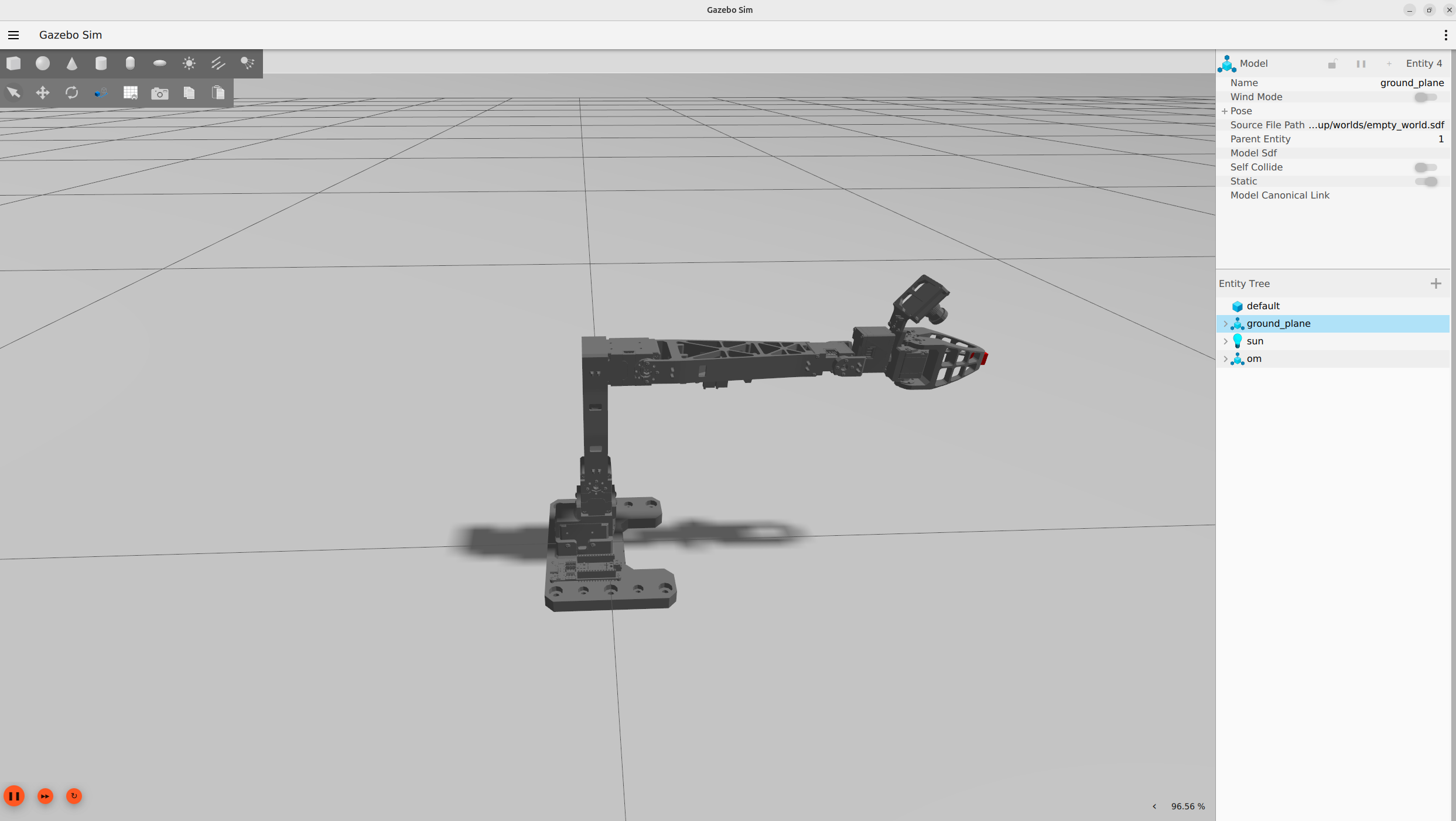
Getting Started with Gazebo
Overview
You can launch Gazebo and RViz individually, or launch RViz together with the physical hardware.
1. Prepare the Open Manipulator Docker Container
Refer to the ROS 2 (Physical AI Tools) Setup Guide to configure the Open Manipulator Docker Container environment.
2. Enable GUI Access
Open a new terminal and run the following command:
xhost +
3. Access the Running Container
./container.sh enter
info
At least one Zenoh daemon must be running in the communication network. If no Zenoh daemon is running, ROS 2 nodes cannot discover or communicate with each other.
For the recommended setup, run zenohd in a terminal inside the open_manipulator Docker container.
4. Launch Gazebo
Launch the simulation environment using:
ros2 launch open_manipulator_bringup omx_f_gazebo.launch.py
5. Run MoveIt and GUI in Simulation
Refer to the Operation Guide to control the robot within the Gazebo environment.
Simulation Views
OMX_F